


Remove Objects - Photo & Video
4.3489.00 Reviews
App Specs
- Version
- 2.6.1
- Updated On
- License
- Free
- Downloads
- 10,000,000+
- Developer
- o16i Apps
- Categories
- Video Players & Editors
- Platform
- Android, iOS
Screenshots
 Analysis by AppCompare
When a candid shot has exactly the right expression but an unwanted passerby in the background, I’d rather rescue the image than retake it and lose the moment. Remove Objects - Photo & Video is built for that kind of cleanup, with a direct approach that makes sense when I want to make one targeted edit on a phone rather than open a full desktop editor. It is a free app from o16i Apps, and its focus is removing distractions from photos and videos.
I see it as a small, practical step in a creative workflow: choose a shot, mark what should go, inspect the result, and decide whether it is ready to share. That narrow purpose is also its main trade-off. It can be useful for quick repairs, but it is not a substitute for a complete editing suite when a project needs detailed retouching, layered compositing, or precise control over every part of the image.
A quick fix for a specific creative problem
The app sits in the video-player and editing space, though the most obvious reason to open it is much simpler than making a complete video. I would reach for it after a family photo catches a stray bag on the floor, or when a short clip includes a small distraction near the edge of the frame. Instead of rebuilding the whole image, I can focus on the one area that is spoiling it.
That makes it especially approachable for casual creators who want a result they can post or send without learning a complicated editing workflow. The Everyone age rating also makes its audience broad, although the editing decision still benefits from a careful eye: removing something from a picture can change its meaning, so I would keep the original when accuracy matters.
First Impressions and Features
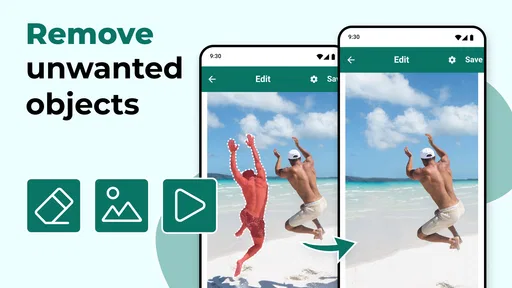
When you first open up the app, you’re greeted with a user-friendly interface that doesn’t overwhelm with too many options. It’s all pretty intuitive. The main draw here is the ability to remove unwanted elements from your photos and videos, and it does this with a surprising degree of finesse.
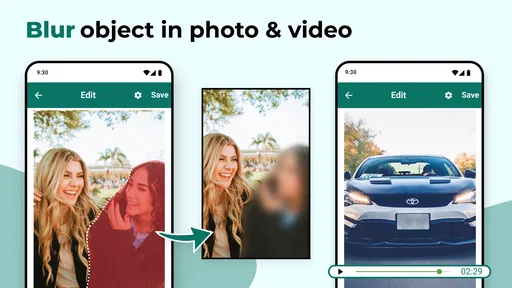
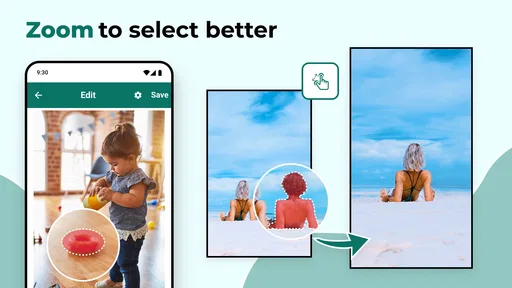
One of the coolest things I noticed right off the bat was the app's use of AI technology. You simply highlight the object you want gone, and the app does its magic. It’s pretty fascinating to see it work—almost feels like you’re wielding some kind of photo-editing superpower!
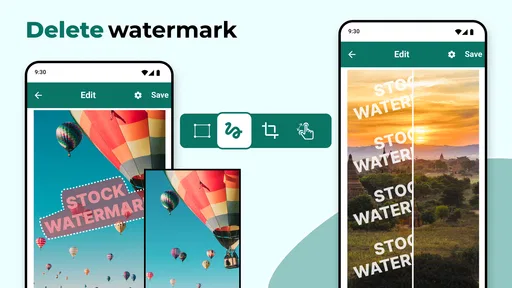
The choice between rectangle and lasso selection is worth treating as a practical tool, not just two ways to draw around a subject. A rectangle is quick for a compact object with clear space around it; a lasso gives me a better chance of tracing an irregular outline when nearby details should remain untouched. I’d start with the smallest selection that still covers the unwanted item, then inspect the repaired edge before expanding the selection. Including too much background can make the result harder to blend, especially where lines or textures meet.
Worth Reading Before You Choose

EA SPORTS FC Mobile 26 Is a Bigger Football Game, but It Takes Time

Flipboard Shows What News Apps Must Do Beyond the Feed

Switching to Android Auto Means Rethinking Your Driving Routine

Google Calendar Makes a Crowded Week Easier to Manage

Ludo King Makes the Most of the Minutes Between Plans

Baby Panda World Brings Quick Play to Modern Phones, but Its Game Library Feels Busy
For a useful before-and-after check, I would keep the untouched source and compare it with the edited copy at normal viewing size, not only while zoomed in. A repair can look convincing close up but leave a repeated patch or a soft smear that becomes obvious when the image is viewed as a whole. This matters most for photos with brickwork, patterned fabric, railings, or other repeating details: those backgrounds give the repair less room to hide mistakes.
Beyond just removing objects, the app also offers some basic editing tools. You can tweak brightness, contrast, and saturation, giving you a decent level of control over your final product. This means you don’t have to switch back and forth between different apps to get your photo just right.
I’d use those adjustments after the cleanup rather than before it. Changing contrast or brightness first can make a blemish easier to spot, but it can also alter the appearance of the surrounding texture the removal has to blend into. My safer routine is to make the removal, review the repaired area, and only then tune the overall image. If a color adjustment makes the patch stand out, I’d undo or soften the adjustment instead of trying to hide a poor repair with heavier edits.
Performance on Photos
So how does it actually perform? On photos, Remove Objects does a commendable job. I tried it on a few different scenarios—everything from crowded backgrounds to simple portraits—and it handled them fairly well. The app shines with simpler edits, where the background is more uniform. If you’ve got a busy scene, it might take a couple of tries to get it perfect, but it’s definitely doable.
I loved how quickly it processed the images. No long waits, which is always a plus when you’re trying to get that perfect shot just right for social media. And if you’re even a bit like me, you’ll appreciate not having to deal with ads every two seconds, as the app keeps interruptions to a minimum.
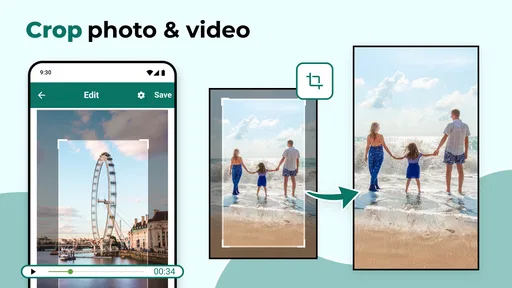
There is a useful judgment call here: not every visible object should be removed. If an item overlaps a face, a hand, a shadow, or a strong architectural line, the software has less clean visual information to work with, and the repair may look artificial. I’d try it on background clutter or a small isolated distraction first. For an overlap that changes an important outline, cropping the frame or choosing another photo may be more believable than forcing a deletion.
A realistic example is a quick street portrait taken while a friend is visiting. The expression and light are right, but a small sign or stray cup distracts from the subject. I’d make a copy, use a tight selection, and compare the result at the size it will actually be shared. If the surrounding pavement or wall blends naturally, the edit is a good candidate for posting; if a repeated texture breaks, I’d keep the original or crop slightly rather than spend time chasing a flawless patch.
Video Editing Capabilities
Now, onto videos. This is where things get a tad more complex. I was curious to see how well the app could handle moving images, and while it’s not perfect, it’s pretty impressive for a mobile app. It’s best used for minor tweaks rather than heavy-duty editing. Think of removing a small object from a relatively still frame rather than an entire scene.
The app allows you to scrub through your video and select frames that need editing. It’s user-friendly, but requires a bit more patience. The AI still does a good job, but keep in mind that complex scenes might not be as seamless as with photos.
For a clip, I’d first find out whether the distraction stays in roughly the same place and whether the background behind it changes much. A small, stationary object against a steady wall is a more sensible target than a person crossing a moving crowd. Motion introduces new edges and background detail from frame to frame, so a repair that looks fine in one selected frame may be distracting when the clip plays. I’d review the edited passage in motion before treating it as finished, not judge it only on a paused frame.
This makes the video tool better suited to a short, controlled cleanup than to reconstructing a moving scene. If the unwanted item appears only briefly, scrubbing carefully can help me focus attention on the relevant moment, but I would still check nearby frames for visual consistency. For a clip where the subject or camera moves substantially, a conventional video editor with a fuller timeline and more detailed tracking controls is the better choice.
The distinction from a general-purpose editor is important. Those apps are usually better when I need to arrange clips, add titles, balance audio, or build a finished sequence; this app is more appealing when the job is a localized removal and I do not want a long setup. For still images, a dedicated retouching editor may offer finer manual control. I’d choose between them based on the task rather than expect one mobile tool to handle every stage of production.
Finishing the edit and choosing the right tool
Before sharing, I’d check the result in the context where it will appear: a social post, a message, or a larger screen can reveal different flaws. I would also keep an untouched copy until I’m satisfied, since object removal is a destructive-looking change even when the app makes the process simple. That small habit gives me a way back if a later review shows an odd edge or an implausible patch.
The app is free to install, while in-app purchases range from $0.99 to $99.99 per item. I’d try the basic workflow on a low-stakes image before deciding whether any paid option is worthwhile for my needs. Its 4.3 average from around 44,000 ratings and more than 10 million installs suggest that it has found a broad audience, but popularity does not guarantee that every difficult repair will suit my particular image. It was released on December 31, 2019, and version 2.6.1 requires Android 5.0 or later.
In practical terms, I’d recommend it to someone who regularly shares phone photos or short clips and wants a focused way to tidy up small distractions. I’d skip it as a primary tool if I needed detailed masking, extensive retouching, a complete timeline workflow, or dependable cleanup of complicated moving footage. Those jobs call for a more specialized editor, even if that means accepting a steeper learning curve.
Who Will Love This App?
If you’re someone who loves taking photos and videos but hates unexpected distractions in your shots, this app is definitely worth a try. It’s great for anyone looking for a quick fix without diving deep into professional editing software. Whether you’re editing for Instagram, a blog, or just for fun, it’s got something to offer.
The app is straightforward enough for beginners but offers enough tools to keep more seasoned photographers engaged. And with the added bonus of basic editing tools, it’s a neat little package for mobile content creators.
Overall, Remove Objects - Photo & Video is a handy tool to have in your editing arsenal. While it may not replace professional software for intricate projects, it’s perfect for on-the-go tweaks. Give it a whirl the next time you need to tidy up your images or videos—you might just find it to be a game-changer in your editing routine!
Pros
- Easy-to-use interface for quick edits.
- Supports both photo and video editing.
- High-quality output with minimal effort.
- Includes advanced AI removal tools.
- Regular updates with new features.
Cons
- Occasional glitches with complex images.
- Limited free version capabilities.
- Ads can be intrusive during use.
- Requires internet for certain features.
- Lacks some advanced editing options.
FAQs for Remove Objects - Photo & Video
What is Remove Objects - Photo & Video and how does it work?
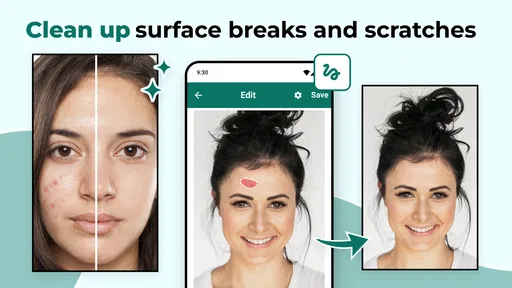
Remove Objects - Photo & Video is an intuitive app designed to edit photos and videos by removing unwanted elements. Using advanced AI technology, it allows users to seamlessly erase objects, people, or blemishes from their media. The app’s user-friendly interface makes it easy for anyone to enhance their visual content without requiring complex editing skills.
Is Remove Objects - Photo & Video available for both Android and iOS devices?
Yes, Remove Objects - Photo & Video is available for download on both Android and iOS platforms. Users can easily find it on Google Play Store for Android devices and the Apple App Store for iOS devices. Ensure your device meets the app’s system requirements for optimal performance.
Does Remove Objects - Photo & Video offer in-app purchases or subscriptions?
Remove Objects - Photo & Video offers a range of free features for basic editing needs. However, to access advanced tools and remove ads, the app provides in-app purchases and subscription options. Users can choose monthly or yearly plans depending on their editing requirements and budget.
How effective is the app in removing objects from photos and videos?
The app is highly effective in removing objects, thanks to its sophisticated AI algorithms. It can intelligently fill in the background after removing elements, making edits appear natural and seamless. However, the effectiveness can vary depending on the complexity of the background and the object being removed.
Are there any privacy concerns when using Remove Objects - Photo & Video?
Remove Objects - Photo & Video prioritizes user privacy and security. The app does not store or share your media files without permission. All edits and files remain on your device unless you choose to share them. It’s recommended to review the app’s privacy policy for additional details on data handling.


